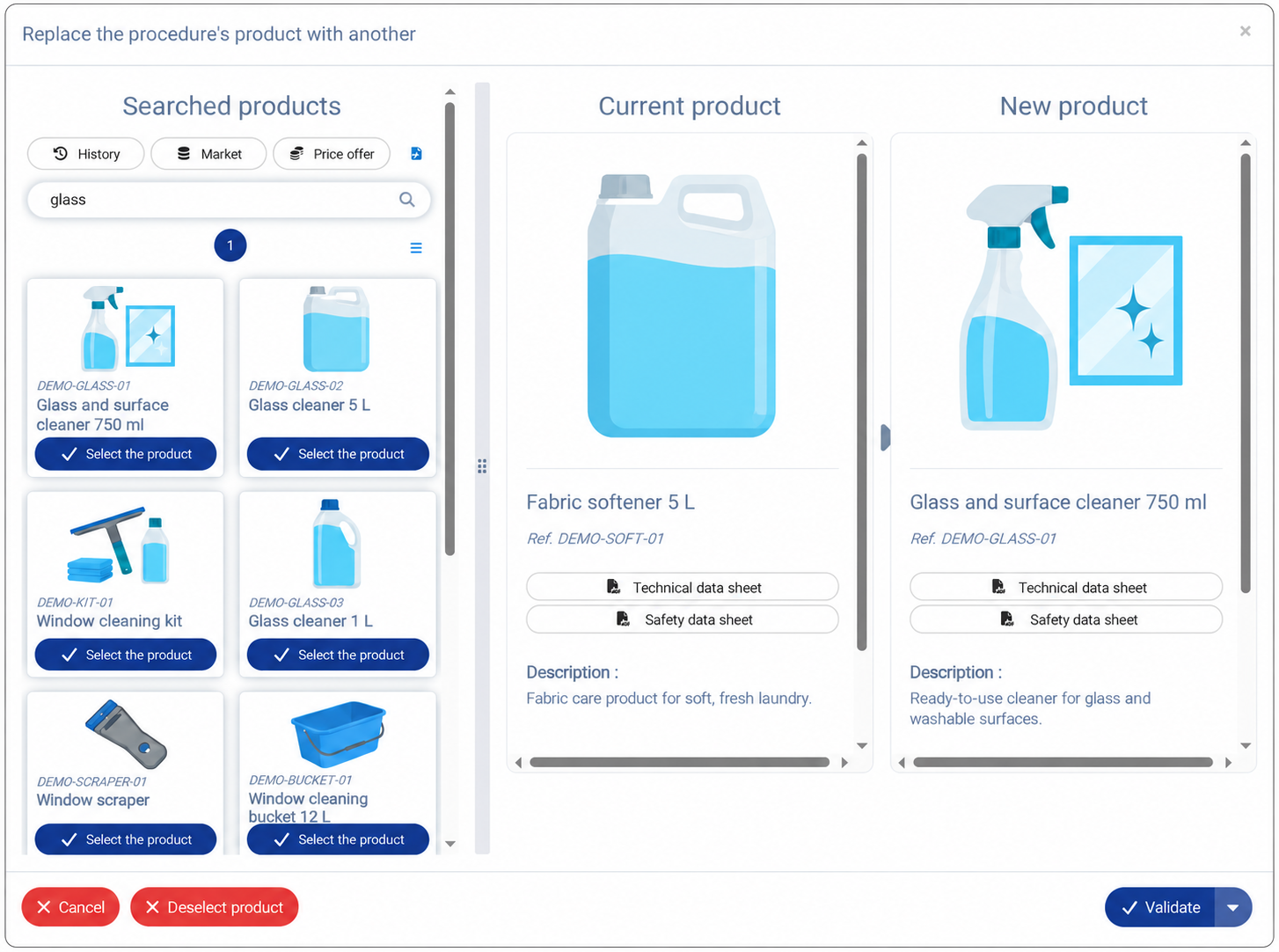
Select and compare a product
Select and compare a product
Context
In the expanded procedure, click the product name, photo or Product label. A replacement window opens.
Starting point
Step 2 — procedure → Product, name or photo
Prerequisites
- Products must exist in the database; the customer’s commercial data must be available for the corresponding filters.
Steps
1. Display available products
Enter a reference or keywords in the search field. You can also click History, Contract or Quotation, depending on the customer’s data. The matching products appear.
2. Select the product
In the results, click Select product for the required item. It appears in the New product panel, to the right of the current product. Selection comes before confirming the replacement.
3. Compare before confirming
Use the available commands to view the old and new products’ technical and safety data sheets. At the bottom right, choose Confirm or the adjacent arrow for the required scope (see next chapter).
Expected result
The replacement product is selected and compared before confirmation.
Remember
Illustrations