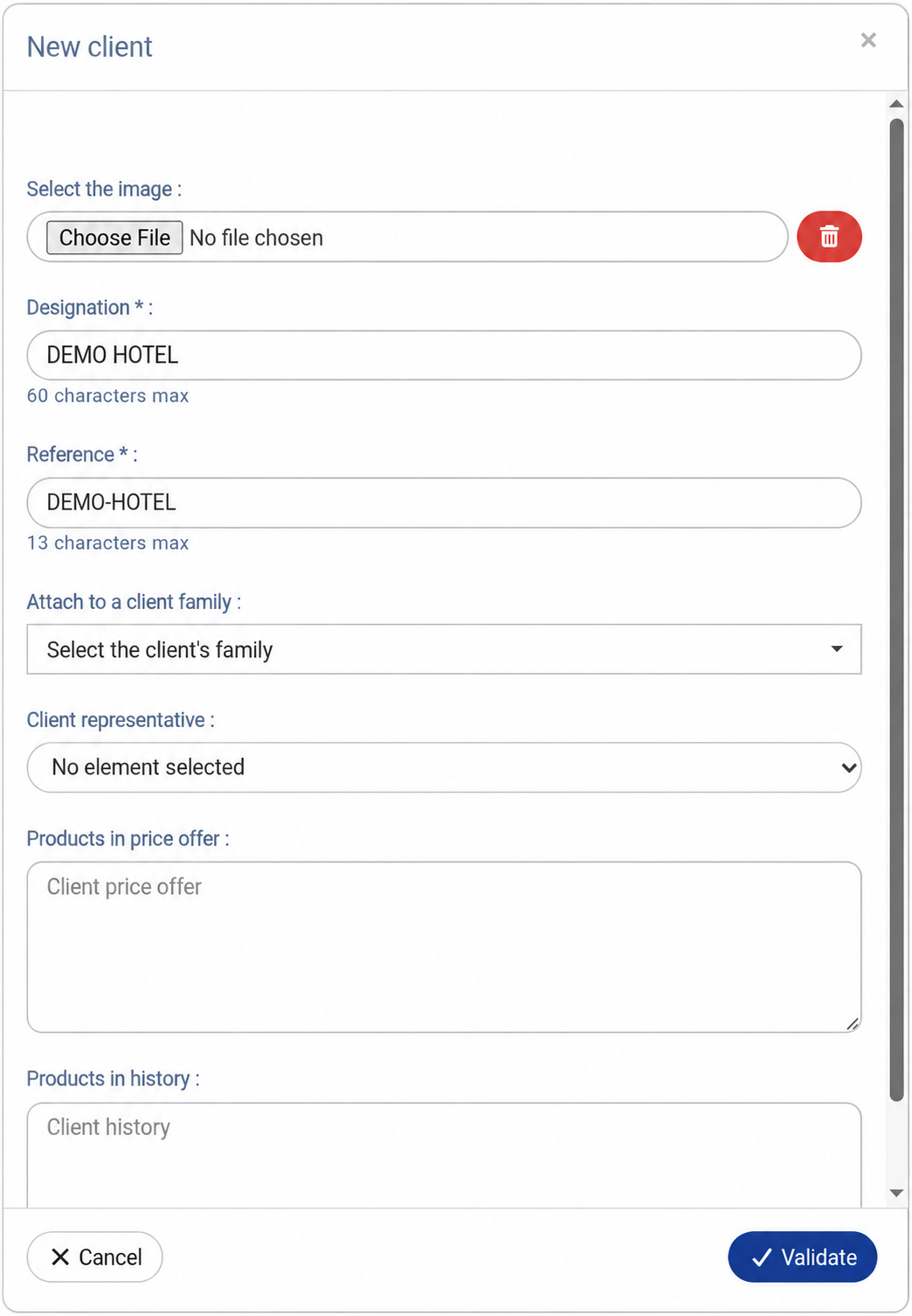
Create and complete a customer record
Create and complete a customer record
Context
Open My customers from the menu. In ERP-connected mode, customers are automatically supplied by your ERP.
Starting point
Prerequisites
- In ERP-connected mode, customer data is supplied automatically; the fields managed manually depend on the installation.
Steps
1. Open the creation form
Click New customer. A window opens. Enter the name, reference and language, then select the customer’s logo if available. Required fields are marked with an asterisk (*).
2. Assign the customer
Choose the customer’s industry family and representative. First create the necessary families using the steps on the next page. The family enables matching industry templates to be suggested when creating a plan.
3. Complete and confirm
In manual management, enter the product references for the quotation or contract and purchase history. Separate the references with line breaks in these record fields. Click Confirm: the customer is created.
Expected result
The customer record is created and can be selected in a plan.
Remember
- The customer must exist in the database before selection at step 1 of a plan. In an Excel import file, product references are separated by commas, not line breaks.
Illustrations