Import elements or an entire plan
Import elements or an entire plan
Context
To extend the plan at step 2, choose the source matching the work to reuse. You can import a zone, a surface, a procedure or an entire existing plan.
Starting point
Step 2 → Import elements → Available plans
Prerequisites
- Have an accessible source plan.
Steps
1. An element from another plan
Click Import elements. Choose the source plan, then reuse the required zone, surface or procedure. The full sequence, filters and entire-plan import are detailed on page 19.
2. Open the import window
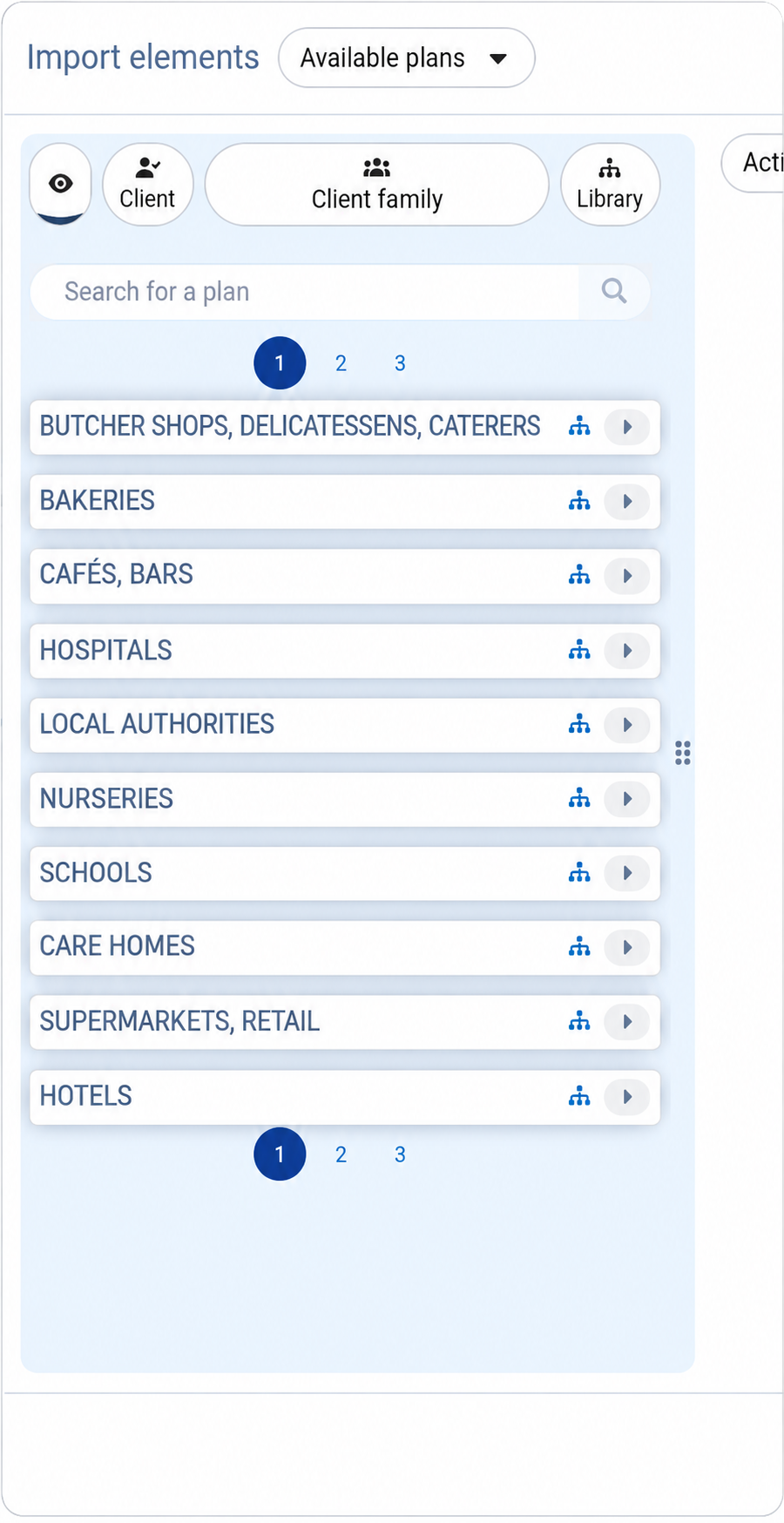
At step 2, click Import elements. In the window that opens, open the Available plans panel on the left.
3. Find and display the source
Search for the plan name or filter plans for the same customer, family or library. Click the required plan: its structure appears on the right of the window.
4. Choose the element to reuse
Expand zones, surfaces and procedures with their arrows. Find the required element, grab its four-arrow handle and drag it to the desired destination in your plan.
5. Add more elements
After the first drop, the import window opens again. Repeat the selection and drag-and-drop for the other required elements.
6. Import the entire structure
To reuse the entire plan, open Action above the source plan, then choose Add everything to the plan. The window closes and the structure is added to your plan.
Expected result
A zone, surface, procedure or the entire source-plan structure is added to the plan.
Remember
- Choose a complete template to start a plan; use element imports and favourites to extend it. Check for duplicates after each addition.
- Review the result before continuing: remove duplicates and equipment absent from the site, then adapt products and parameters to the customer.
Illustrations