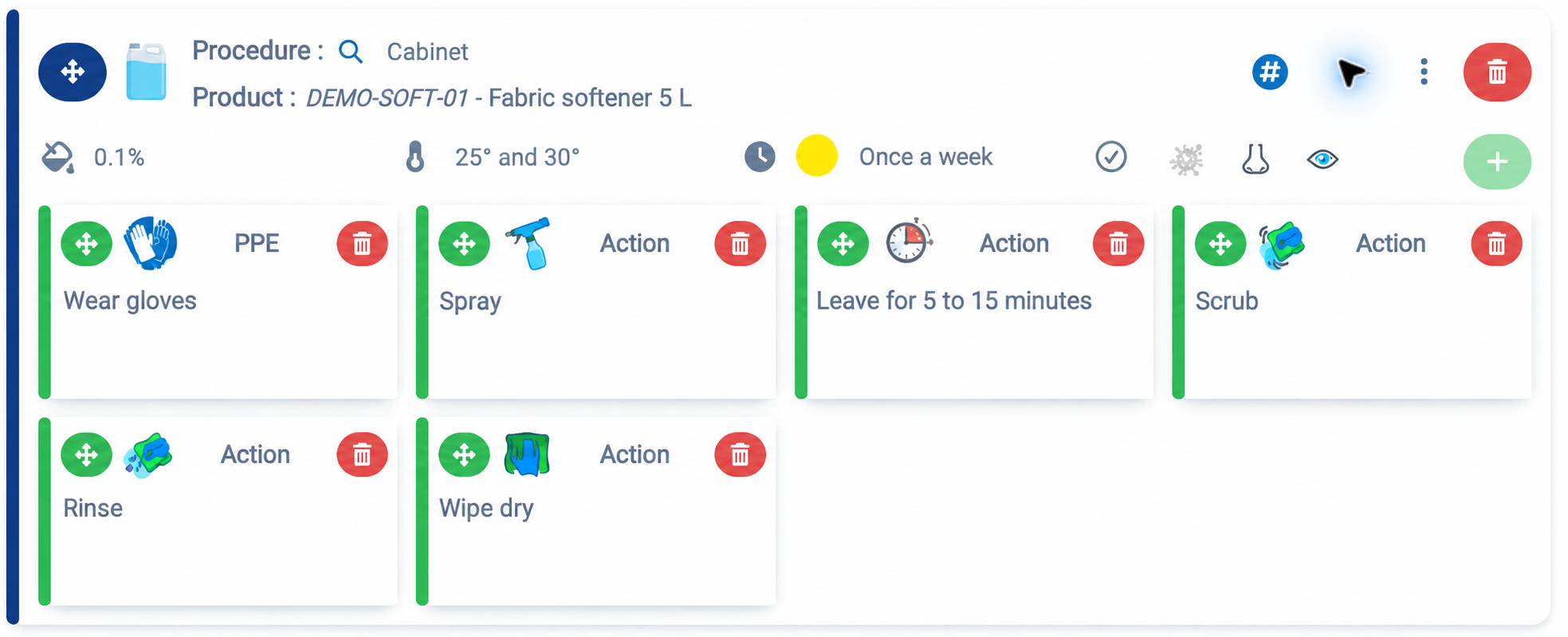
Enter procedure parameters
Enter procedure parameters
Context
Expand the procedure using its arrow to display parameters and tasks. Use the arrow to the right of its name to access its parameters.
Starting point
Step 2 — expand the procedure
Prerequisites
- Create or select a procedure.
Steps
1. Enter the parameters
Choose the product, then the dosage, temperature and frequency. Specify visual, odour or bacterial checks as required.
2. Open product selection
Click Product, its pictogram or its name. A selection window opens. Find the product, click Select product, then confirm your choice. See pages 15 and 16.
3. Review recommendations
If the product record includes a recommended dosage and temperature, a window may offer to apply them. Accept the suggestion or enter values suited to the use, then confirm.
4. Enter values directly
If no suggestion appeared, click the procedure’s dosage field and enter the value. Do the same for temperature. Libraries help with entry and consistent wording.
5. Choose the frequency
Click the frequency field. Select a library label, or enter your own frequency and choose a representative colour.
6. Define checks
Enable the required checks: bacterial, smell and/or visual. Several can be associated with one procedure. Continue with task entry on the next page.
Expected result
Product, dosage, temperature, frequency and checks are entered.
Remember
- Data shown in a demo example is not a recommendation for your customer.
- After changing a product, review the task text too: actions, contact time and rinsing must remain consistent with the product instructions.
Illustrations