Create or import documents
Create or import documents
Context
Open the Company or Group document library, according to the available options. The documents will be used as plan attachments.
Starting point
Company or Group document library
Prerequisites
- Have the content to write or the PDF to import available.
Steps
1. Create with the editor
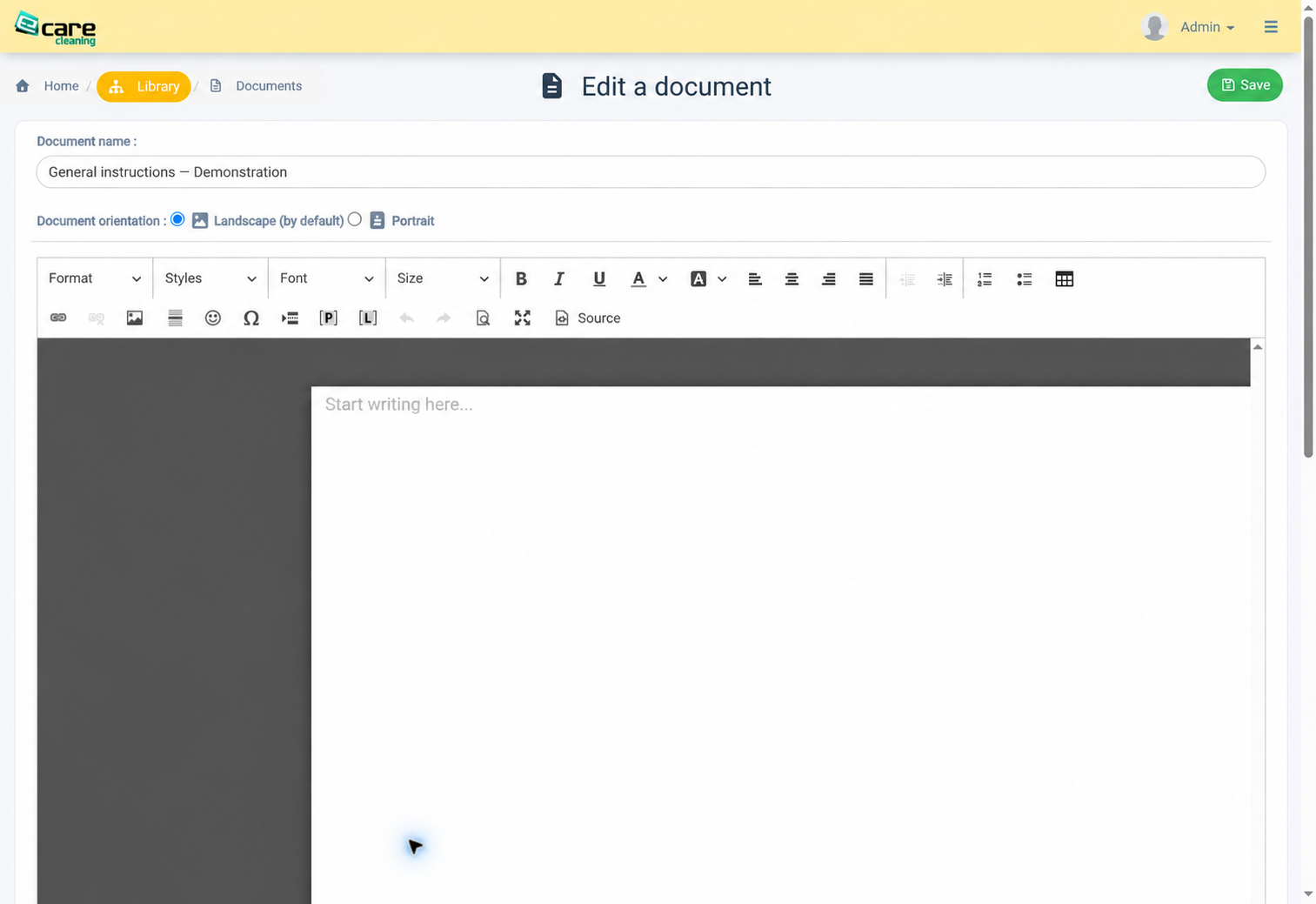
Click New document. In the editor, enter a title, write the content and format the page. Choose the available orientation, then save the document as a PDF.
2. Import an existing PDF
Click Import PDFs, then select the file. Specify whether to import only the selected page or all pages, then confirm the import.
3. Use the document
The document is now part of the library. At step 3 of a plan, find it in the left-hand list and drag it to the introduction or conclusion. Reorder attachments if necessary.
Expected result
The document becomes available at step 3 of plans.
Remember
- Static documents keep the same content. Dynamic documents are generated from the plan: check them in the final package. Their uses are detailed on page 22.
Illustrations